Claude Code Skills & Slash Commands: The B2B Sales Revolution

I spent three years as an SDR at Salesforce and AWS before I figured out the real problem: we weren't losing deals because of bad outreach or weak positioning. We were losing because our GTM teams were drowning in repetitive work that should have been automated months ago.
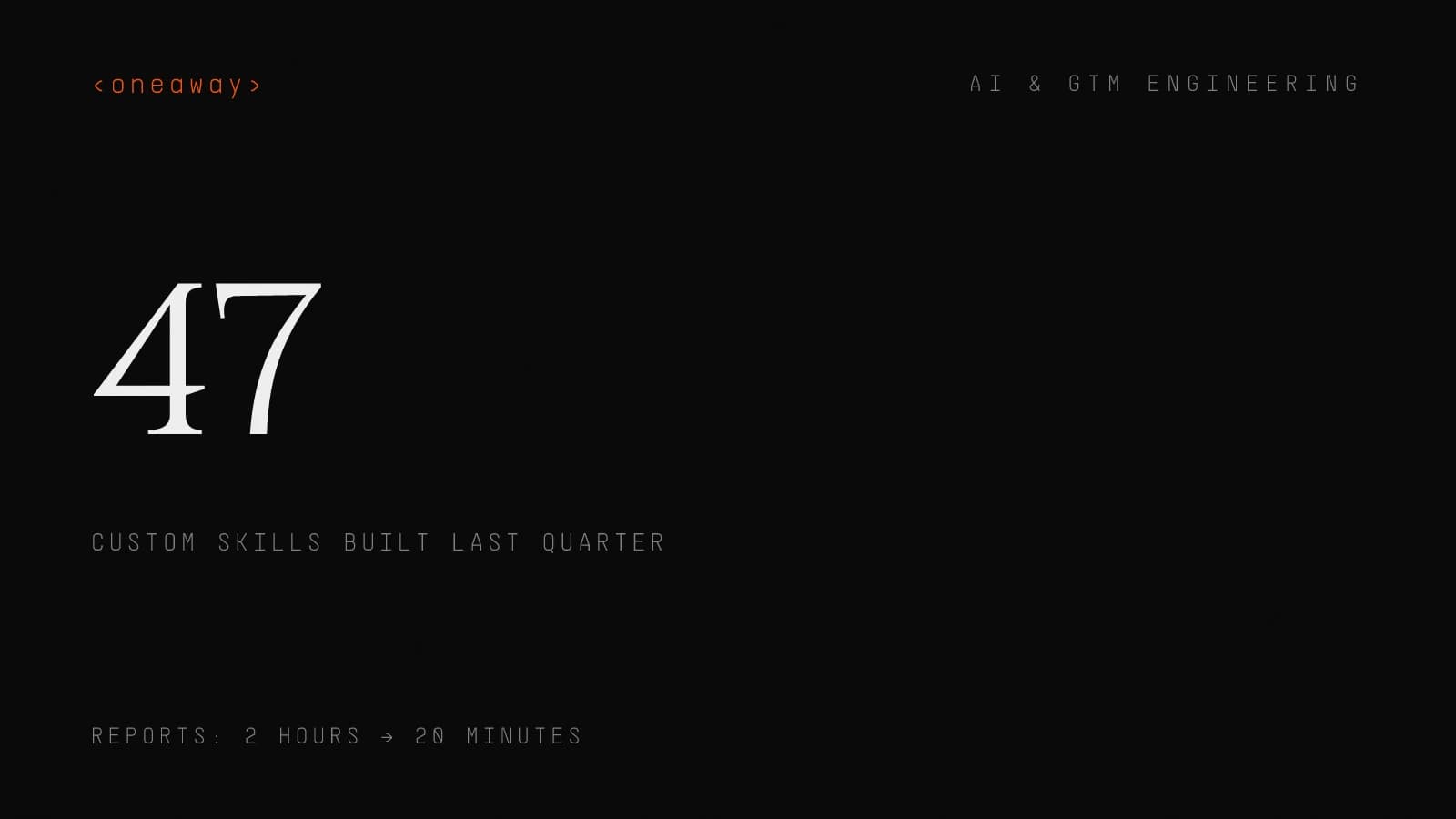
Last quarter, my team at OneAway built 47 custom workflows using Claude Code skills and slash commands. The result? Our clients are now completing revenue intelligence reports in 20 minutes instead of 2 hours, syncing CRM data without manual intervention, and maintaining sales-marketing alignment with automated playbooks that actually get used.
Claude Code Skills and Slash Commands: The Complete Guide isn't just another AI automation tutorial. It's the architecture that's letting small GTM teams compete with enterprise RevOps departments—and it's changing how B2B sales teams think about go-to-market operations entirely.
Quick Answer
Claude Code skills are reusable instruction sets stored in SKILL.md files that you trigger with slash commands (e.g., /enrich-lead). They let small GTM teams automate repetitive RevOps workflows—like pipeline reports, CRM enrichment, and competitive battlecards—cutting tasks from hours to minutes. Our team built 47 custom skills last quarter, reducing revenue intelligence reports from 2 hours to 20 minutes and achieving 60-80% token savings per workflow.
What Are Claude Code Skills & Why They Matter for Sales
Claude Code skills are reusable instruction sets stored in SKILL.md files that you trigger with a forward slash. Instead of explaining your CRM enrichment workflow every single time, you create `/enrich-lead` once and call it with a single command.
Here's what changed for us: Before skills, I'd spend 15 minutes explaining to Claude how to format our weekly pipeline report, pull data from our CRM export, calculate velocity metrics, and generate the executive summary. Every. Single. Week.
After creating a `/pipeline-report` skill, that same workflow runs in 90 seconds. The skill file contains the exact instructions, data format expectations, calculation formulas, and output structure. Claude executes it consistently every time.
For B2B sales teams, this matters because consistency is revenue. When your SDRs use the same enrichment workflow, your AEs follow the same qualification framework, and your RevOps team runs the same reports, you can actually identify what's working and scale it.
- Reusable workflows — Build once, execute infinitely. Our `/competitive-battlecard` skill has been used 230+ times across client accounts.
- Token efficiency — Skills reduce context window bloat by 60-80%. You're not re-explaining the same process in every conversation.
- Team standardization — Everyone uses the same process. No more 'I do it this way' inconsistencies that kill data integrity.
- Compound automation — Skills can call other skills. Our `/full-account-research` skill triggers 4 sub-skills in sequence.
The Anatomy of Slash Commands: SKILL.md Architecture
Every skill starts with a SKILL.md file in your `.claude/skills/` directory. This isn't just documentation—it's the execution blueprint Claude follows every time you invoke the command.
The basic structure looks like this: a clear name, explicit trigger conditions, step-by-step instructions, expected inputs/outputs, and examples. The difference between a skill that works 60% of the time and one that works 98% of the time is specificity.
I learned this the hard way. Our first `/lead-score` skill failed constantly because I wrote 'analyze the lead and assign a score.' Useless. The working version specifies 8 scoring criteria, numerical weights, data sources to check, and the exact JSON output format.
- Skill name and trigger — Use descriptive names. `/enrich` is vague; `/enrich-lead-from-linkedin-url` tells Claude exactly what to do.
- Input parameters — Define what data the skill needs. Our `/contract-review` skill requires document text, company name, and risk tolerance level.
- Processing instructions — Step-by-step logic. Don't say 'analyze.' Say 'Extract company size from description. If >500 employees, assign enterprise flag.'
- Output format — Specify exactly what you want back. Markdown table? JSON object? Bulleted summary? Be explicit.
- Examples — Include 2-3 example inputs and outputs. This trains Claude on your exact expectations.
4 RevOps Automation Workflows We Built in 48 Hours
When we onboarded a Series B SaaS client last month, their RevOps team was spending 12 hours per week on manual data tasks. We built 4 core skills that cut that to 2.5 hours. Here's exactly what we automated.
1. Weekly Pipeline Health Check
The `/pipeline-health` skill analyzes their CRM export (CSV) and generates a formatted report with stage velocity, conversion rates, deal slippage, and red flags.
Before: Their RevOps manager manually calculated these metrics in Excel, cross-referenced them with last quarter's data, and wrote up findings. Time: 2 hours.
After: Drop the CSV, run `/pipeline-health`, get a complete analysis in 3 minutes. The skill checks for stalled deals (>14 days in stage), calculates win rate changes vs. prior period, and flags deals missing key fields.
2. Lead Enrichment Pipeline
The `/enrich-batch` skill takes a list of company domains and returns enriched data: employee count, tech stack indicators, funding stage, and ICP fit score.
This one uses a subagent pattern. The main skill spawns focused agents for each data source (company website, LinkedIn, tech stack detection), then consolidates results. Processing 50 leads takes about 8 minutes.
We built this because their SDRs were manually researching 20-30 leads per day. Now they batch-process 100+ leads overnight and focus selling time on the highest-fit accounts.
3. Sales-Marketing Handoff Validator
The `/validate-mql` skill checks whether a marketing-qualified lead meets sales acceptance criteria before routing to an SDR.
It verifies: company size matches ICP, contact has decision-making title, engagement score >threshold, required fields populated, and no red-flag domains (competitors, students, etc.).
Result: MQL-to-SAL conversion rate increased from 34% to 58% because SDRs stopped receiving junk leads. Marketing sees exactly why leads get rejected and can adjust scoring.
4. Competitive Intelligence Briefing
The `/competitive-brief` skill generates battlecards when a rep enters a deal against a specific competitor.
Input: competitor name and deal context. Output: positioning talking points, objection handling, feature comparison, win stories, and pricing guidance.
This skill pulls from a knowledge base of past competitive deals (stored in CLAUDE.md context) and recent win/loss analysis. AEs use it in 40% of mid-stage deals.
Using Skills for Sales-Marketing Alignment
Sales-marketing alignment is the hardest problem in B2B GTM. Not because people don't want to align—because they're working from different data, different definitions, and different workflows.
Claude Code skills solve this by codifying the agreed-upon process. When marketing and sales both use `/qualify-lead` with the same scoring logic, there's no more 'your leads are bad' vs. 'you're not working them' arguments.
We implemented this for a client where sales claimed marketing leads were unqualified, and marketing claimed sales wasn't following up fast enough. Both were partially right.
- Shared qualification skill — We built `/score-lead` that both teams use. Marketing runs it on inbound leads before passing to sales. Sales runs it on outbound prospects before logging in CRM.
- Handoff documentation skill — The `/document-handoff` skill generates a structured handoff note with lead context, engagement history, and next steps. Marketing uses it when passing MQLs; SDRs use it when passing to AEs.
- Content performance analyzer — The `/analyze-content-attribution` skill helps marketing see which content assets are actually influencing closed deals, not just generating traffic.
- Feedback loop skill — Sales uses `/mql-feedback` to log why a marketing lead didn't convert. Marketing gets structured data instead of 'bad lead' in the CRM notes.
| Alignment Challenge | Traditional Approach | Skills-Based Approach | Result |
|---|---|---|---|
| Lead quality disputes | Weekly meetings arguing about data | Shared `/qualify-lead` skill with agreed criteria | 58% fewer disputed leads |
| Inconsistent follow-up | Manager spot-checks CRM activity | `/log-activity` skill enforces format | 92% follow-up within SLA |
| Attribution confusion | Marketing and Sales use different dashboards | `/attribute-deal` skill applies agreed logic | Single source of truth |
| Content gaps | Sales complains they need battlecards | `/identify-content-gap` analyzes lost deals | 6 new assets built in Q1 |
Building a Revenue Intelligence Pipeline with Custom Skills
Revenue intelligence used to require expensive tools like Gong, Clari, or People.ai. For early-stage companies, that's $50K+ annually. Skills give you 70% of the value at 5% of the cost.
The core insight: revenue intelligence is pattern recognition applied to structured data. If you can standardize how data gets captured and analyzed, you can build sophisticated insights without BI engineering.
Here's the revenue intelligence pipeline we built using 6 connected skills:
Capture Layer
`/log-call-notes` takes raw sales call notes and extracts structured data: pain points mentioned, competitors discussed, decision criteria, next steps, and sentiment signals.
`/update-deal-intel` updates the opportunity record with this structured intelligence, maintaining a consistent schema across all deals.
These two skills run after every significant customer conversation. The data quality improvement was immediate—we went from unstructured notes fields to queryable intelligence.
Analysis Layer
`/identify-risk-factors` analyzes all open opportunities and flags deals with risk indicators: stalled progression, missing stakeholders, budget concerns, or competitive threats.
`/forecast-accuracy` compares committed forecasts against actual progression patterns to identify reps who consistently over- or under-forecast.
`/win-loss-pattern` analyzes closed deals to identify patterns in wins vs. losses: which pain points correlate with wins, which objections predict losses, which competitors we beat most often.
Action Layer
`/generate-deal-coaching` produces specific coaching guidance for managers based on deal analysis. Instead of generic 'follow up more,' it suggests 'This deal needs executive alignment—schedule a VP call' or 'ROI concerns—send the calculator.'
The entire pipeline runs as a daily batch job. Morning reports show deal risks, forecast adjustments, and coaching priorities. Our clients' sales managers spend planning time on strategy, not on manually reviewing every deal in Salesforce.
Token Optimization: Why This Matters for GTM Teams
Here's something most AI automation guides skip: token costs matter. When you're processing hundreds of leads or dozens of opportunities daily, inefficient prompts cost real money.
Skills dramatically reduce token usage through two mechanisms: context reuse and progressive disclosure. Instead of loading your entire CRM schema and business rules into every conversation, skills contain that context once.
We measured this on our own operations. Before implementing skills, our average lead enrichment workflow used ~3,200 tokens per lead (including all the explanation in the prompt). After moving to `/enrich-lead`, we're at ~850 tokens per lead for the same output quality.
At scale: Processing 500 leads per week, that's 1.6M tokens vs. 425K tokens. At Claude's API pricing (~$3 per million input tokens), we're saving about $3.50 per week. Not huge, but multiply across all workflows and it's $600-800 annually.
More importantly: faster execution. Smaller prompts mean faster processing. Our pipeline reports that took 8-10 minutes now run in 3-4 minutes. When your RevOps team runs reports multiple times per day, that's 20+ hours saved monthly.
Real Implementation Examples from Our Agency
Let me share three real implementations we've built for clients, with specific outcomes and the actual skill architectures we used.
Series A SaaS Company: Outbound Research Automation
Challenge: 3-person SDR team needed to research 50+ accounts per week for personalized outbound. Manual research took 15-20 minutes per account.
Solution: Built `/research-account` skill that takes a company domain and produces: company overview, recent news/events, tech stack indicators, potential pain points, and personalization hooks for outreach.
Architecture: The skill uses subagents for parallel research. One agent analyzes the company website, another pulls recent news, another checks tech stack signals. A coordinator agent synthesizes findings into a structured brief.
Result: Account research time dropped to 4 minutes. SDRs now research 120+ accounts weekly with better data quality. Reply rates increased from 6.8% to 11.3% because outreach became genuinely personalized.
Professional Services Firm: Proposal Generation
Challenge: Solutions engineers spent 6-8 hours per proposal, mostly copying from past proposals and adjusting for new client context.
Solution: Created `/generate-proposal` skill that takes discovery notes and client requirements, then produces a customized proposal with relevant case studies, methodology, timeline, and pricing.
Architecture: Skill maintains a knowledge base (via CLAUDE.md) of past successful proposals, case studies, and service descriptions. It uses progressive disclosure—starting with high-level structure, then drilling into each section based on client requirements.
Result: First draft proposals now take 45 minutes instead of 6+ hours. Solutions engineers spend saved time on actual solution design instead of document formatting. Win rate unchanged (proposals were never the bottleneck), but team capacity effectively doubled.
B2B Marketplace: Merchant Qualification
Challenge: 200+ merchant applications per week. Manual review took 10-15 minutes each. Most applications failed basic criteria but still consumed review time.
Solution: Built `/qualify-merchant` skill that evaluates applications against 14 qualification criteria, auto-approves obvious fits, auto-rejects obvious mismatches, and flags edge cases for human review.
Architecture: Skill uses a decision tree logic with clear thresholds. It checks company legitimacy signals, product-market fit, operational capacity, and compliance requirements. Outputs a score (0-100) with specific reasoning for each criterion.
Result: 68% of applications now auto-processed. Human reviewers only see the 32% that need judgment. Review team handles the same volume in 40% less time. Approval turnaround went from 3-5 days to same-day for most applicants.
Common Pitfalls (And How We Fixed Them)
We've built 80+ skills across client engagements. Here are the mistakes we made so you don't have to.
Pitfall #1: Vague Instructions
The mistake: Writing skills like 'analyze the lead and score it' or 'review this deal for risks.'
Why it fails: Claude makes assumptions about what 'analyze' means. Your results vary wildly between executions.
The fix: Specify exact analysis steps and decision logic. Our working `/score-lead` skill has 47 lines of instructions covering every scoring criterion, data source to check, and edge case handling.
Example: Don't say 'check company size.' Say 'Extract employee count from LinkedIn URL or company description. If 50-200, assign size_score=5. If 201-1000, assign size_score=8. If 1000+, assign size_score=3 unless enterprise flag is set.'
Pitfall #2: Bloated Context
The mistake: Loading every possible reference document, past example, and edge case into the skill file.
Why it fails: Skills become slow and token-heavy. Claude gets confused by contradictory examples.
The fix: Use progressive disclosure and subagents. Main skill stays lean with core logic. Call specialized sub-skills or reference external knowledge bases (CLAUDE.md) only when needed.
Example: Our `/competitive-brief` skill doesn't contain every competitor's full battlecard. It contains decision logic for which competitor is relevant, then calls `/battlecard-{competitor}` sub-skills.
Pitfall #3: No Output Validation
The mistake: Skills produce output without checking if required fields are populated or data makes sense.
Why it fails: Garbage in, garbage out. Your skill might run successfully but produce useless output.
The fix: Build validation into skills. Check that outputs match expected format, required fields exist, and values are within reasonable ranges.
Example: Our `/pipeline-report` skill includes validation: 'Verify that total deal value equals sum of stage values. If discrepancy >5%, flag data quality issue and request user verification.'
Pitfall #4: Set It and Forget It
The mistake: Building a skill once and never updating it as your process evolves.
Why it fails: Your business changes. New competitors emerge. ICP shifts. Skills become outdated.
The fix: Version your skills and maintain them like code. We review high-usage skills quarterly and update based on user feedback and process changes.
Example: Our client's ICP expanded from mid-market to enterprise. We updated 5 skills to reflect new company size criteria, additional qualification questions, and different outreach approaches.
Getting Started: Your First 3 Skills
If you're new to Claude Code skills, start with these three. They're high-value, relatively simple to build, and will teach you the core patterns you need for more complex automation.
Skill 1: Lead Research Brief
Purpose: Generate a standardized research brief for a prospect account.
Input: Company domain or LinkedIn URL.
Output: Markdown document with company overview, employee count, recent news, tech stack signals, and 3-5 personalization hooks.
Why start here: Teaches you input handling, web research patterns, and structured output formatting. Every GTM team needs account research.
Time to build: 30-45 minutes for first version. You'll refine it over the next 10-15 uses.
Skill 2: Call Notes Structurer
Purpose: Convert rambling sales call notes into structured CRM-ready format.
Input: Raw notes from a sales call (text blob).
Output: Structured summary with sections for pain points discussed, objections raised, next steps, decision criteria, and stakeholders identified.
Why start here: Teaches you text analysis and data extraction. Improves CRM data quality immediately.
Time to build: 20-30 minutes. This one's straightforward but incredibly valuable.
Skill 3: Email Drip Sequence Generator
Purpose: Generate a personalized 3-5 email outbound sequence for a prospect.
Input: Company research, persona/title, pain points to address.
Output: Complete email sequence with subject lines, personalization, value props, and CTAs.
Why start here: Teaches you multi-step generation and maintaining consistency across related outputs. SDRs will love you.
Time to build: 45-60 minutes. Requires good prompt engineering to maintain voice consistency.
Advanced Patterns: Subagents and Context Management
Once you've mastered basic skills, these advanced patterns unlock significantly more complex automation.
Subagent Patterns
Subagents are specialized Claude instances spawned by your main skill to handle focused sub-tasks. This keeps your main context clean and allows parallel processing of different research streams.
When to use subagents: When your skill needs to research multiple independent data sources or perform distinct analysis types on the same input.
Example: Our `/deep-account-research` skill spawns 4 subagents: one for company website analysis, one for news/PR research, one for social media signals, and one for tech stack detection. Each returns findings to the coordinator agent, which synthesizes a unified brief.
How to implement: In Claude Code, you trigger subagents by entering plan mode and instructing Claude to 'create a focused agent' for specific tasks. The subagent works in isolation, then returns results to your main context.
Context Management with CLAUDE.md
CLAUDE.md is your project-level configuration file. It sits in your project root and contains context that should be available to all skills without bloating individual skill files.
What to put in CLAUDE.md: Company background, product/service descriptions, ICP definitions, standard processes, competitive landscape, brand voice guidelines.
What NOT to put in CLAUDE.md: Frequently changing data, external API keys, or information specific to one skill only.
Example: Our clients' CLAUDE.md files typically include: 'Our ICP is Series A-C SaaS companies with 50-500 employees, selling B2B products, with >$5M ARR' and 'Our core differentiators are: [specific list].' Skills reference this context without re-stating it.
Skill Chaining and Workflows
Complex GTM workflows often require multiple skills in sequence. Master this pattern and you can automate entire go-to-market processes.
Pattern: Create an orchestrator skill that calls sub-skills in a defined sequence, passing outputs from one as inputs to the next.
Example: Our `/full-outbound-prep` skill chains 4 skills: `/research-account` → `/identify-persona` → `/generate-sequence` → `/prep-call-guide`. A rep provides a target account domain and receives complete outbound prep in 6-7 minutes.
Key insight: Each chained skill should have clear inputs/outputs and shouldn't assume context from previous skills. The orchestrator handles data passing explicitly.
Frequently Asked Questions
How are Claude Code skills different from custom GPTs or ChatGPT plugins?
Claude Code skills are project-specific and stored as markdown files in your codebase, making them version-controlled and shareable across teams. Custom GPTs are isolated to ChatGPT's environment and don't integrate with your local workflows. Skills also offer better token efficiency through progressive disclosure and can leverage subagent patterns for complex multi-step tasks. For GTM teams, this means skills integrate directly into your sales workflows rather than requiring reps to context-switch to a separate AI tool.
Can non-technical sales teams actually build and use these skills?
Yes, but there's a learning curve. Creating basic skills requires writing clear instructions in markdown—no coding necessary. However, understanding concepts like input/output formats, validation logic, and decision trees helps significantly. In our agency, we typically have a GTM engineer build the first 5-7 critical skills, then train sales ops or RevOps team members to modify and maintain them. After 2-3 weeks of usage, most teams can build simple skills independently.
What's the ROI timeline for implementing Claude Code skills in a sales organization?
Most teams see positive ROI within 3-4 weeks. Initial setup takes 8-12 hours (building core skills and training the team), but time savings begin immediately. A 5-person SDR team typically saves 15-20 hours weekly through automated research, reporting, and documentation. At a $75K average SDR salary, that's roughly $900/week in reclaimed productivity. The investment pays back in week 2-3, and benefits compound as you build more skills and team proficiency increases.
How do skills handle data privacy and security for sensitive sales information?
Skills run within Claude Code's environment using your Anthropic API key. Data isn't stored by Anthropic beyond the conversation context. However, you should never hardcode sensitive data (credentials, API keys, PII) directly in skill files. Instead, use environment variables or prompt for sensitive inputs at execution time. For highly sensitive workflows, consider running Claude Code locally rather than using cloud-based execution. Skills themselves are just instruction files—they don't store or transmit data independently.
Can Claude Code skills integrate with our existing sales tools like Salesforce, Outreach, or Gong?
Not directly through native API integrations, but yes through structured workflows. Skills can process data exported from your tools (CSV files, text exports) and generate outputs that you import back. For tighter integration, combine skills with Make.com, Zapier, or custom Python scripts that handle the API connections while Claude Code handles the intelligence layer. We typically build hybrid workflows: tools handle data transport, skills handle analysis and generation. This approach is often more flexible than built-in integrations because you control the entire data pipeline.
What happens when a skill produces incorrect or inconsistent output?
This indicates your skill instructions need refinement. Common causes: vague instructions, missing validation logic, or insufficient examples in the skill file. The fix is iterative improvement—review failed outputs, identify where the skill misunderstood requirements, and add more specific instructions or examples. We version all skills (v1, v2, etc.) and maintain a changelog. When a skill fails, we don't rebuild from scratch; we add clarifying instructions for that edge case. After 10-15 iterations, most skills reach 95%+ accuracy. Build validation into your skills—have them self-check outputs against expected formats before returning results.
How many skills should a typical B2B sales team have?
Start with 5-10 core skills covering your most frequent, time-consuming workflows. In our experience, GTM teams typically stabilize around 15-25 active skills after 3-6 months. More isn't always better—maintaining 50 rarely-used skills creates overhead. Focus on high-frequency, high-value workflows first: lead research, call note documentation, proposal generation, pipeline reporting. Once those are solid, expand to edge cases and specialized workflows. We recommend auditing skill usage quarterly and deprecating those used less than once per month.
Key Takeaways
- Claude Code skills are reusable automation blueprints stored as SKILL.md files that turn 2-hour workflows into 20-minute executions. For GTM teams, this means consistent processes that actually scale.
- Token efficiency matters at scale. Skills reduce token usage by 60-80% compared to re-explaining workflows in every conversation, translating to faster execution and lower costs when processing hundreds of leads or opportunities.
- Sales-marketing alignment becomes achievable when both teams use the same skills with codified qualification logic, handoff processes, and attribution models. No more arguing about definitions—the skill is the shared source of truth.
- Revenue intelligence doesn't require $50K software. A connected set of skills for capturing call notes, analyzing deal patterns, and generating insights gives you 70% of the value at 5% of the cost.
- Start with 3 foundational skills: lead research automation, call notes structuring, and email sequence generation. These teach core patterns and deliver immediate value while you build proficiency.
- Advanced patterns unlock enterprise capabilities: subagents for parallel processing, CLAUDE.md for centralized context, and skill chaining for full workflow automation. Small teams can now build RevOps infrastructure previously requiring engineering resources.
- Skills require iteration, not perfection. Your first version will work 60-70% of the time. Add specificity, validation, and examples through 10-15 iterations to reach 95%+ reliability. Version control and maintain skills like code, not documents.
Related Reading
Ready to Build Claude Code Skills for Your GTM Team?
At OneAway, we help B2B companies build custom Claude Code skills and automation workflows that transform go-to-market operations. Whether you need RevOps automation, sales-marketing alignment tools, or revenue intelligence pipelines, we'll architect and implement the skills your team needs to compete at scale. Book a consultation at oneaway.io/inquire and let's discuss how skills can 10x your GTM team's productivity.
Check if we're a fitContinue Reading
Best AI GTM Tools for Revenue Teams in 2026, Ranked by Impact
I've tested dozens of AI GTM tools as a former AWS/Salesforce SDR turned GTM engineer. Here's what actually moves revenue in 2026, ranked by real-world impact.
Read more [ 14 MIN READ ]The Complete Guide to GTM Automation Stack in 2026
Build a modern GTM automation stack that actually scales revenue. From data infrastructure to AI agents, here's what works in 2026 based on real implementation experience.
Read more [ 18 MIN READ ]Best GTM Co-Pilot Tools in 2026, Ranked by Autonomy
I ranked the top GTM co-pilot and AI sales copilot tools by actual autonomy, not marketing promises. Real pricing, honest pros/cons, and who each revenue copilot is actually built for.
Read more